Friday, July 7, 2023

Sitecore Xm Cloud - Navigating React Hooks: Addressing useEffect Missing Dependency Warnings and Escaping Quotation Marks

 Recently I got below error while building and deploying the XM Cloud project


 +00:00|INFO|114:5  Warning: React Hook useEffect has a missing dependency: 'facets'. Either include it or remove the dependency array.  react-hooks/exhaustive-deps

39:13  Error: `"` can be escaped with `"`, `“`, `"`, `”`.  react/no-unescaped-entities

  Error: `"` can be escaped with `"`, `“`, `"`, `”`.  react/no-unescaped-entities


to fix this issue for temprary I disabled below settings.

 "@typescript-eslint/no-unused-vars": "off",
    "@typescript-eslint/no-explicit-any": "off",
    "react/no-unescaped-entities": "off",
    "@next/next/no-page-custom-font": "off",

Wednesday, June 14, 2023

Fixing Package Installation Error: Version Conflict in Sitecore CLI

During the initial stages of building my Sitecore project using Bitbucket pipelines, I encountered a critical roadblock: a version conflict with the sitecore.cli package. The error message indicated that the manifest file already contained version 5.1.25, conflicting with the desired version, 5.2.113. To address this, a targeted fix involved updating the dotnet-tools.json file manually. In this technical account, I'll provide a detailed walkthrough of this fix.

The Issue: Version Mismatch in sitecore.cli

The error message "Cannot add package. Manifest file already contains version 5.1.25 of the package sitecore.cli" pinpointed a version conflict during the build process. The challenge was to rectify this conflict, ensuring alignment with the required version, 5.2.113.

The Fix: Updating dotnet-tools.json

1. Locate dotnet-tools.json

The first step was to navigate to the directory specified in the error message, typically /opt/atlassian/pipelines/agent/build/.config/. Here, the dotnet-tools.json file resides.

2. Open for Editing

Once located, I opened the dotnet-tools.json file for editing. This can be achieved through any preferred text editor or integrated development environment (IDE).

3. Update sitecore.cli Version

Within the file, I identified the entry for sitecore.cli and manually updated the version number to 5.2.113. This involved changing the existing version, usually set at 5.1.25, to the required version.

4. Save Changes

After making the necessary adjustment, I saved the changes to the dotnet-tools.json file, ensuring that the updated version number for sitecore.cli was persisted.

5. Retry Package Installation

With the file updated, I retried the package installation process. The purpose was to confirm that the correct version, 5.2.113, was now being utilized without encountering the previous version conflict.

6. Verify Compatibility

Before concluding the fix, it was imperative to verify the compatibility of version 5.2.113 with the project's requirements. This involved checking for any additional dependencies or behavioral changes.

Conclusion

By strategically editing the dotnet-tools.json file, specifically updating the version of the sitecore.cli package, the version conflict was successfully resolved. This targeted fix allowed for a seamless build process, ensuring that the correct version was utilized during the Sitecore project development within Bitbucket pipelines. The manual edit of the manifest file provides a precise solution for version conflicts, demonstrating the power of nuanced adjustments in the development workflow. As always, adapt these steps to your specific scenario and leverage the broader development community for insights and collaboration. Happy coding!

Friday, June 9, 2023

Unleashing the Power of Sitecore OrderCloud: A Technical Deep Dive


Introduction:

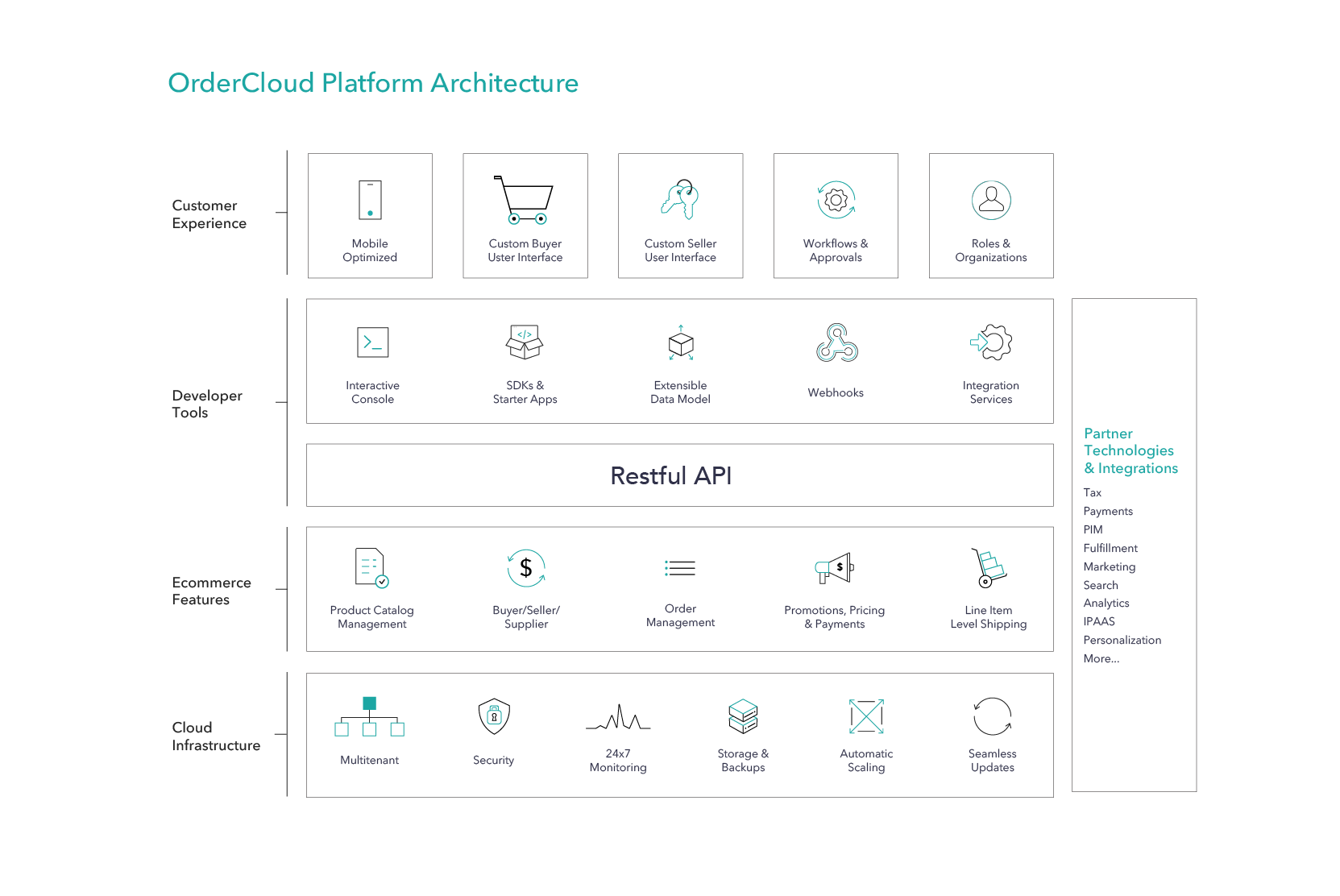
Embark on a technical journey into the heart of Sitecore OrderCloud, a robust e-commerce solution seamlessly operating on Microsoft Azure. In this blog post, we explore its microservices architecture, integration points, compliance features, and the intricacies of every interaction through the OrderCloud API. Let's dive in.

Image Source - Sitecore Order Cloud

Microservices Architecture and Cloud-Native Approach:

OrderCloud leverages a microservices architecture, embracing the scalability and flexibility offered by cloud-native solutions. We'll dissect the layers of its architecture, exploring how each microservice contributes to the platform's agility.

Integration Points:

Explore the diverse integration points that make OrderCloud a powerhouse in the e-commerce landscape. From data synchronization to third-party service integration, we'll unravel the seamless connectivity that ensures a cohesive e-commerce experience.

Webhooks and Integration Events:

Delve into the world of webhooks and integration events, crucial components for real-time communication and data synchronization. We'll discuss their role in maintaining a synchronized ecosystem, enabling timely updates and actions across the OrderCloud platform.

Security and Compliance:

OrderCloud's commitment to security is evident in its annual SOC 2 Type 2 audits. We'll explore the platform's compliance with GDPR and CCPA, ensuring that businesses using OrderCloud can confidently navigate the complex landscape of data protection and privacy regulations.

User Context in API Interactions:

Uncover the importance of user context in every interaction with the OrderCloud API. We'll discuss how this user-centric approach enhances security, personalization, and overall user experience within the e-commerce ecosystem.

Conclusion:

In this technical exploration, we've scratched the surface of Sitecore OrderCloud's capabilities. From its microservices architecture to robust integration points and unwavering commitment to security and compliance, OrderCloud stands as a testament to the evolution of e-commerce on the cloud. As businesses navigate the digital landscape, understanding the technical intricacies of platforms like OrderCloud becomes paramount for success.

Wednesday, May 17, 2023

Troubleshooting and Resolving Sitecore XM Cloud Deployment Issue: Rendering Host Build Failed


In this blog post, learn how to identify and resolve problems lurking in your code, like unused variables. We'll explore my personal encounter with this challenge and discuss alternative solutions, including the power of configuration tweaks to disable specific features. Uncover the secrets of efficient debugging and enhance your coding prowess today

"no-unused-vars": "off"
Troubleshooting Steps

Check ESLint's output for "no-unused-vars" warnings. Identify which variables are reported as unused.
Update TypeScript File:

In your TypeScript file, address the warnings by either using the variables or 
removing them if unnecessary.
ESLint Configuration:

Ensure your ESLint configuration includes proper TypeScript rules. Adjust the "no-unused-vars"
rule to match your project's requirements.


After updating the TypeScript file and ESLint configuration, re-run ESLint to verify that 
the "no-unused-vars" issues are resolved. By updating the TypeScript file and configuring ESLint
appropriately, you can quickly resolve "no-unused-vars" issues 
and maintain a clean and efficient codebase.

Saturday, April 8, 2023

Resolving the "No CORS Policy Found" Error in Sitecore 10.3 Identity Server


Encountering the Sitecore Identity Server error, specifically the "No CORS policy found for the specified request" issue, can be a frustrating experience for developers and administrators. In this blog post, we'll delve into the details of this error and provide a practical solution to address it.

Error Details:

The error message points to a problem with the CORS (Cross-Origin Resource Sharing) policy, specifically when the request origin is set to "null," indicating that it doesn't have permission to access the resource. The log entries show the execution of the relevant endpoint in the Identity Server, followed by an unhandled exception related to a SQL Server connection issue.

Error Log:

(Sitecore Identity/AA0001) Request origin "null" does not have permission to access the resource.

(Sitecore Identity/AA0001) No CORS policy found for the specified request.

(Sitecore Identity/AA0001) Executing endpoint '"Sitecore.Plugin.IdentityServer.Controllers.AccountController.Login (Sitecore.Plugin.IdentityServer)"'

[INF] (Sitecore Identity/AA0001) Route matched with "{action = \"Login\", controller = \"Account\"}". Executing controller action...

[INF] (Sitecore Identity/AA0001) Executed action "Sitecore.Plugin.IdentityServer.Controllers.AccountController.Login (Sitecore.Plugin.IdentityServer)" in 16964.3894ms

[ERR] (Sitecore Identity/AA0001) An unhandled exception has occurred while executing the request.

System.Data.SqlClient.SqlException (0x80131904): A network-related or instance-specific error occurred while establishing a connection to SQL Server...

 ---> System.ComponentModel.Win32Exception (2): The system cannot find the file specified.

Solution:

To address this issue, follow these steps:

Investigate the CORS Policy:

Check your Sitecore configuration and ensure that the CORS policy is correctly configured to allow the specified request origin. Review Sitecore documentation and relevant articles to verify the proper CORS setup.

Review External Resources:

The provided Sitecore Stack Exchange link (https://sitecore.stackexchange.com/questions/19242/what-does-this-error-message-in-the-identity-server-logs-mean) can offer valuable insights into similar issues. Explore discussions and solutions from the community.

Check SQL Server Services:

In the presented solution, the root cause was identified as SQL Server services not running. Validate the status of your SQL Server services and restart them if necessary. Ensure that SQL Server is configured to allow remote connections and that the instance name is correct.

Conclusion:

Resolving the "No CORS policy found for the specified request" issue in Sitecore Identity Server involves a comprehensive approach. By investigating the CORS policy, reviewing external resources, and addressing potential SQL Server service issues, you can successfully mitigate this error. Remember to adapt these steps based on your specific environment and configurations.


Monday, March 6, 2023

Overcoming Sitecore CLI Plugin Installation Hurdles: Resolving "dotnet-tools.json came from another computer and might be blocked" Error in Sitecore JSS


When installing Sitecore CLI Plugins, you may receive the following error:


File .config\dotnet-tools.json came from another computer and might be blocked to help protect this computer. For more information, including how to unblock, see https://aka.ms/motw

This error occurs when the .NET tool installer detects that the dotnet-tools.json file is from a different computer. This is a security feature to help protect your computer from malicious code.

Solution

To fix this error, you can take the following steps:

Back up the dotnet-tools.json file.

Recreate the dotnet-tools.json file.

Update the content of the dotnet-tools.json file to include the Sitecore CLI Plugins that you want to install.

Run the following command to install the Sitecore CLI Plugins:

dotnet tool install sitecore.cli

Example


# Back up the `dotnet-tools.json` file

copy dotnet-tools.json dotnet-tools.json.backup


# Recreate the `dotnet-tools.json` file

new-item -itemtype file -path dotnet-tools.json


# Update the content of the `dotnet-tools.json` file

$tools = @{

    {

        "name": "Sitecore.CLI",

        "version": "5.1.25"

    }

}


Out-File -FilePath dotnet-tools.json -InputObject $tools -Encoding ascii

# Install the Sitecore CLI Plugins

Conclusion

Once you have followed these steps, you should be able to install the Sitecore CLI Plugins without any errors.

Sunday, February 5, 2023

How I fixed my Sitecore CM instance when it wouldn't come up (Invoke-RestMethod "http://localhost:8079/api/http/routers0


My Sitecore CM instance wasn't coming up, and I was getting the following error:

Write-Error: Timeout waiting for Sitecore CM to become available via Traefik proxy. Check CM container logs

I checked the Docker logs and found that the issue was with the license file path. The license file was located on a different drive than the one that Sitecore was expecting.

To fix the issue, I did the following:

Deleted all the Docker containers.
Initialized the Sitecore instance again.
Set the license file path using the following command:
setx HOST_LICENSE_FOLDER D:\\license
Ran the up script to start the Docker containers.
After following these steps, the Sitecore CM instance came up and I was able to log in.

If you're having trouble getting your Sitecore CM instance to come up, be sure to check the license file path and make sure it's set correctly.