Wednesday, August 30, 2017

Sitecore Control Panel Feature 1- Best Practices to Manage Role and Users - Part1


Example - User1, User 2 with sample acces , One can be a aprover only and second can be a aprover and publisher - this can be handled through workflow access.

Setup fo user for multilingual - Will discuss some of the features for role can be leverage here
Multilingual user - What if user is from Chines - will he be able to see all desktop and content in chinees, A simple answer from all Sitecore developer is yer, but there are some advance settings where default language can be setup like in case if chinese content not found it will default render from that language.

Below are some highlight topies for this first part - will provide more details in next section.

I have captured some question herer which wiill help to clarify some items - Point#6

  1. Understanding Role Managment.
  2. Create first Role and domain configuration.
  3. Multilingual Role and amazing scenarios.
  4. Trigger and Explore role in details.
  5. Some items for the next sessions.

1     Understanding Role Management.

Role is a group of access that can be combined and applied to a user, there are lot of benefit of using the roles but some of them are below.
  1. 1Any number of user which got assigned same role can be changed/managed easily.
  2. It will help to manger user and setup quickly etc.
  3. It can be assigned at workflow level for differentiate user role like approver and publisher, can be setup at parent node, basically these are example of access control which are part of role and individual users access.
All role information is available here: -

Step by step- Login screen


Go to the Role Manager section


This option allows the grouping of users into structured units, such as Grade1, sales, anonymous users, and so on. This makes it easier to organize security access because you can use a single role to assign security access rights to multiple users. Roles give you the flexibility to change permissions and to add or remove users without having to make changes to the whole website

2     Understanding Role Management.

Click on new – top section


Let’s give it a name - Grade1AllAccess

Name will not accept illegal character and will get below warning

Search the items here for the next assignation


Select the role and start using the above options.
All existing roles are in Sitecore domain, if required to create new domain make sure appropriate roles has to be created.

Let’s try and POC – Create a new user and assign this role without any permission to understand the default role and access.
Go to dashboard and select the User Manager


There are total four default users


Add a role from the role edit section – Select the newly created role from here.


Click Next and it will ask to open the editor option.


Next widow to assign the access at item level and more details.


Now login from this user-

Providing Author access


If you provide the Author access, then user will be able to login here

Editor will have only read only access to entire content tree.


2     Role based scenarions and multisite root level access.

Let's create some sample content to track how these access will be provided.


de for the Grade1User1, Steps-
Login to role manager and assign the particular role at parent node.


 Result - Parent node can completly hided from the system by removing read only access.

Beloare the comparing from before and asfter at content level.


What if I remove the parent node read only access and allow all child to read and write access, will all children will be visible – NO


3     Multilingual role and scenarions.

Sample quesion foom Sitecore-

  1. Questions and answer- Initial draft.
  2. How many default roles in the Sitecore?
  3. Answer- 36
  4. What is different in Member, Member Of and Domain off?
  5. Each role will be associated with Member OFF- Yes/No?
  6. Answer- Yes
  7. 4.      What will happen if I create a new role let’s say A and a new user let’s say User1 and assign this role A – without any more access, will he be able to login.
  8. Answer – Required author or any member of permission.
  9. 5.      Default Author role will be able to see all content in read only mode or can edit or delete.
  10. Answer – Read only mode
  11. 6.      Can you provide access based on templates?
  12. 7.      Can you provide access at root/parent level node?
  13. Answer – Yes
  14. 8.      Can we hide complete tree node?
  15. Answer – Yes
  16. 9.      If I have one item in root node but don’t want to allow CRUD operation to parent node, is this doable?
  17. Answer- Yes
Open items for the next sessions -
  1. 1.      There is more option where we can setup role based on workflow stags – like what all are users which have access to approve /reject etc.
  2. 2.      Profile setup all settings.
  3. 3.      Setup new profile for the user.
  4. 4.      Role/user serialized and deserialized etc.


Thursday, August 24, 2017

Sitecore - How to fix could not found configuration node -watcher/media/folder

Hi All,

Here are the details for the root cause of this issue and fix.


This error will occur when we added custom configuration in the siteocre root like pipelines and other events and not added the right format.

Example:-

Below is the sample configuration which will work fine.


For this configuration - It will work perfectly,


If we change the configuation let's add any unexpected/wrong format tag then it will create this issue

Example below-


Please check all your configuration there must be some issue where sitecore will not be able to merge in the configuration - Sitecore/admin/Showconfig.aspx

Hope this will help.

Sunday, August 20, 2017

Sitecore Practical Series-1 Setup development machine and required software.

Sitecore Practical Series-1
Setup development machine and required software.
Visual Studio 2017, Sitecore 8.2 and Microsoft SQL Server 2016,IIS 8.5,Sitecore Rock


Overview
Agenda- Required software can be downloaded from the below links:-
  1. Visual Studio 2017 :- https://www.visualstudio.com/vs/whatsnew/
  2. SQL Server download link:- https://www.microsoft.com/en-gb/sql-server/sql-server-editions-express
  3. Sitecore 8.2-(rev. 170728) - https://dev.sitecore.net/Downloads.aspx
  4. IIS 8.5 - This can be enabled through the control panel - Window option.
  5. MongoDB.
  6. Sitecore Rock

Download and install all required software


1. Setup IIS
Setup IIS first on your local system, below are the steps. - Go to admin panel - installation software- window installation section and enable IIS settings as mention below.


2. Setup SQL Server

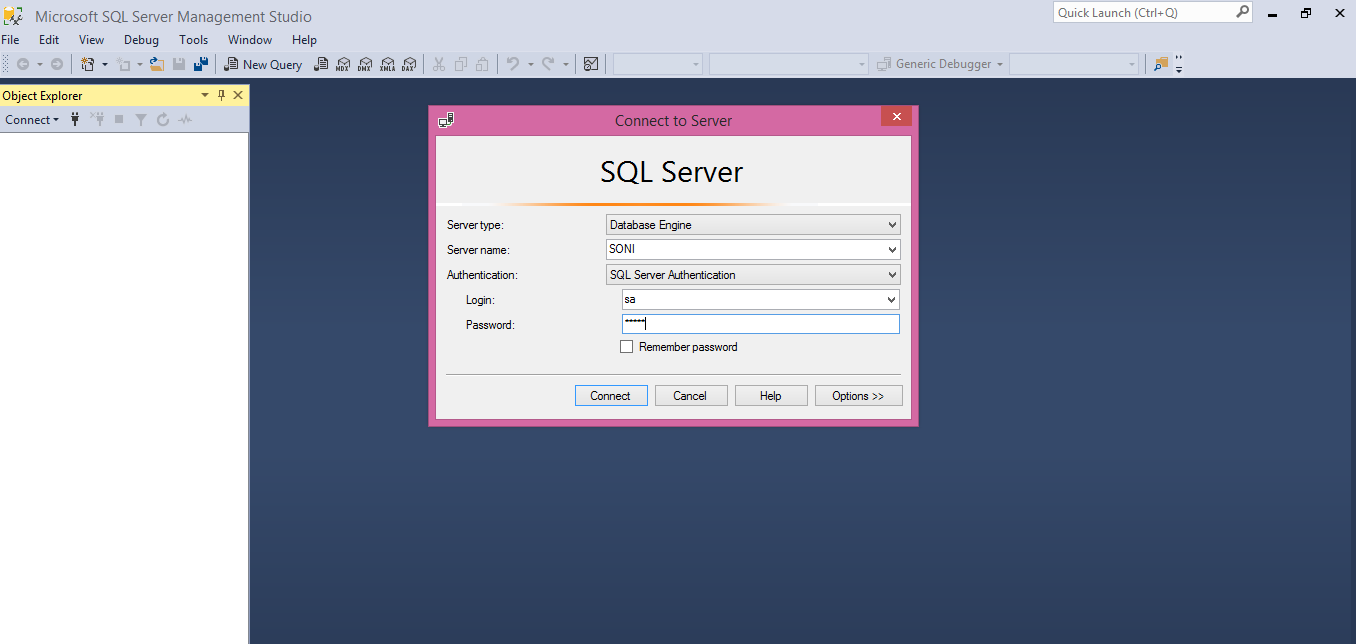
SQL server must be running in Mized Authentication mode, You should now the username and password for the server.

Note 1 - SQL server should be setup in MiedMode.

Tips 1 - In case if SQL setup not done in MixedMode, below are the steps to rest it without re installation.

Login to SQL through window mode and go to properties - Change the mode from here

 After enabling this option the current SA login needs to be enabled, below is the reference screen:-

Note 2 - As per my past experience SQL server should be installed first before the visual studio, As Visual studio will install some SQL supported files and after SQL installation the SQL installation may fail to override the existing setup files.

Tips 2 - Install SQL server before the Visual Studio.

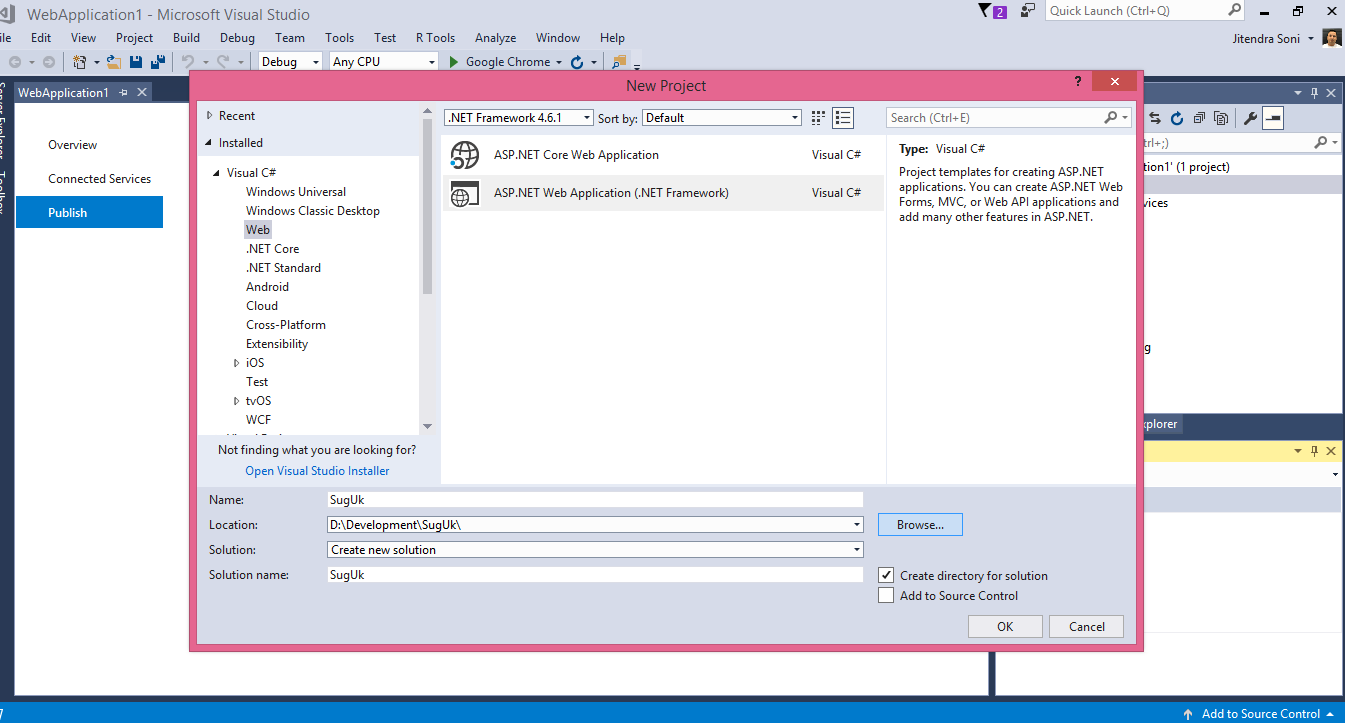
3. Setup Visual Studio 2017
Download visual studio from the above link and setup, below are the steps and details.


3. Install Sitecore 8.2

Download Sitecore from the above link - Mention in this post.

Executable file for the Sitecore


Sitecore can be installed through various mode - like New instance will create altogether a new setup including database and configuration

It can override the existing instance by choosing Existing Instance option and can be installed client only.

Clint only option will discuss later when we configure the multiple CM and CD servers.


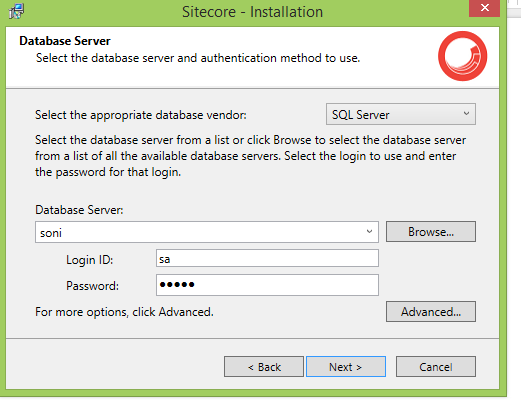
Backed database can be define here

Sitecore support both SQL server and Oracle database


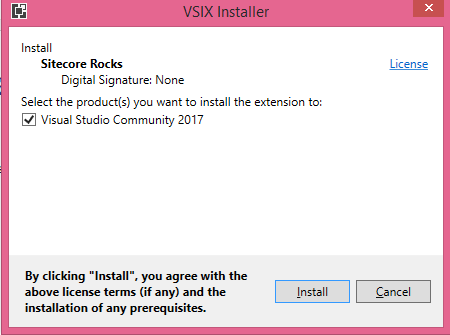
4. Install Sitecore Rock


Sitecore rock will help for the easy development with Sitecore, this plugin easily connected Sitecore with Visual studio

Link to download :-
https://marketplace.visualstudio.com/items?itemName=JakobChristensen.SitecoreRocks


4. Installation and setup for MongoDB

MongoDB will required for the DMS configuration - Mostly used for the analytics, If you are using Sitecore 8.1 then this will also required to install sitecore packages.

Link to download :-http://www.mongodb.org/downloads

Required setup in the connection string


These are the default settings, If you install and setup MongoDB correctly then this should work.


Saturday, August 19, 2017

Sitecore - Set sequences for template fields - Combined with base and derived tamplate

Hi All,

The problem statement - One template - having two base template, the sequence of all combined field should be mixed and match.

Example -

Base Template 1 - field Heading 1, Heading 2
Base Template 2 field Heading 3, Heading 4
Derived Template fields Heading 5 Heading6.

Result of final template's field should be

Heading 1
Heading 3
Heading 5
Heading 2
Heading 4

Solution:-

For setting up sequence order within template it's very straight forward - change the value in sequence field.

But for the base template - Make sure both the sections( Base Template 1, Base Template 2 and Drived Template ) in base and derived should have same sequence values.

Tuesday, August 15, 2017

Dynamic Compression for the IIS to improve Sitecore performance.

For improving the site performance and page load time – This can be planned.

Sitecore 8.1 , IIS v10


Steps:-

Add Entry


 Enable these setting – apply and restart the IIS

Plan to request vis Accept-Encoding header

If this will not work try to add below configuration in web.config

Saturday, August 12, 2017

Sitecore Commerce 8.2.1 -Cleanup Commerce Catalogs

In case the catalogs ever go out of sync because of gaps or issues from development. Please follow the below instructions to change them over to lean catalog.

  1. Remote into the Commerce Engine box for the Environment (TEST)
  2. Launch Catalog manager (see below for some Catalog Manager Quirks) and delete all the AU catalogs starting from with the virtual catalogs and then the Base catalog. Please note if SQL has FULL recovery mode it might take a while in deleting the catalogs or even result in failures because of timeouts. It is preferable to delete one catalog at a time so we don't run into SQL contention issues.
  3. Run the PDB to Sitecore commerce import job. Please ensure that UseLeanVersion is true before triggering this job. Also, Make sure we set the DeltaHours to cover entire catalog from PDB. Or if possible flag the products in PDB that are to be imported in to commerce as last updated within in the hour so it picks up all the products required to be in commerce catalog.
Catalog Manager Quirks
When we launch catalog manager we should see the catalogs on the left navigation and details on the right hand side


If the catalogs on the details are not visible by default. Please use the "Up" button until you see the catalogs in the details section. Once you see the catalogs on the details side. We can select the catalog and perform actions on that catalog from the Tasks section.